How do I enable and use the MeVitae x Ashby integration?
MeVitae leverages the power of deep tech and people science to help organisations hire smarter, faster, and fairer by mitigating unconscious and algorithmic bias. Our innovative Blind Recruiting Solution de-biases the candidate selection process, allowing organisations to hire more diverse and inclusive teams. The integration with Ashby will allow you to redact information from candidate records to reduce bias in the recruiting process.
In this article, we will go over how to enable the MeVitae integration with Ashby and how it's used.
Generate API Key in Ashby:
-
Within your Ashby account, click on ‘Admin’ in the top taskbar.
-
Click Ashby API, API Keys.
-
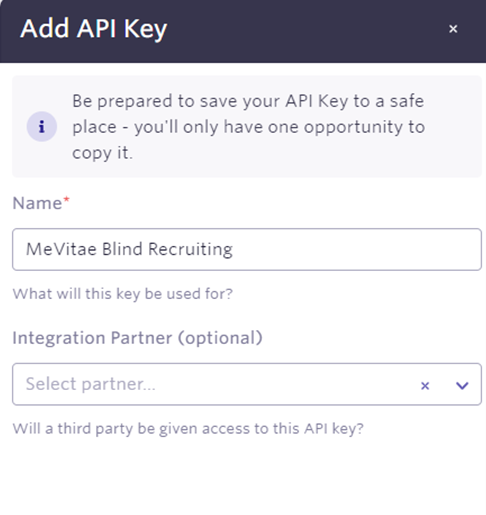
Call the API Key ‘MeVitae Blind Recruiting’ and create the API key.
Setup the integration within MeVitae:
-
Click into your integration admin settings in MeVitae
-
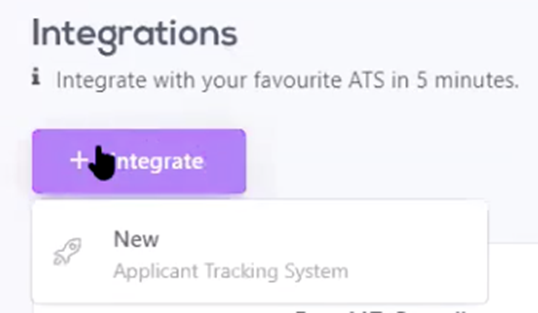
Select '+Integration' and select 'New'
-
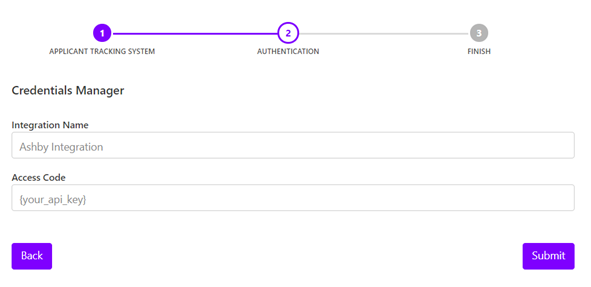
Select ‘Ashby’ and fill out the relevant info, selecting Access Code the ATS requirements.
-
Click ‘next’ and enter the information.
-
The integration setup is now complete.
How to use the integration:
You'll first need to configure some details within MeVitae and Ashby in order for the integration to work.
Creating the Job Profile in MeVitae:
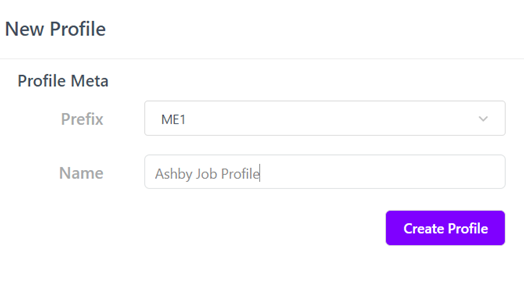
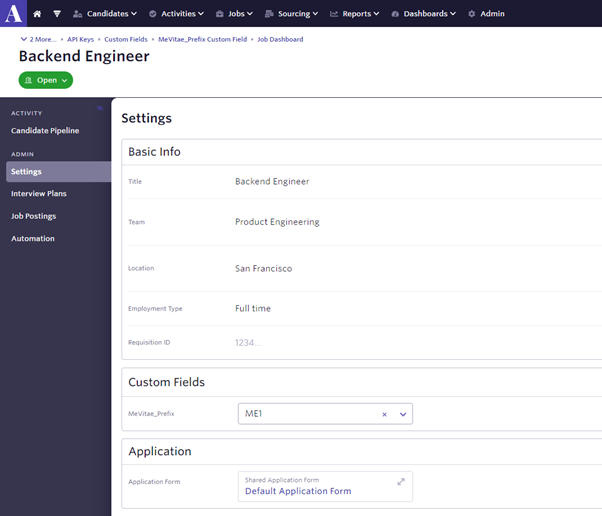
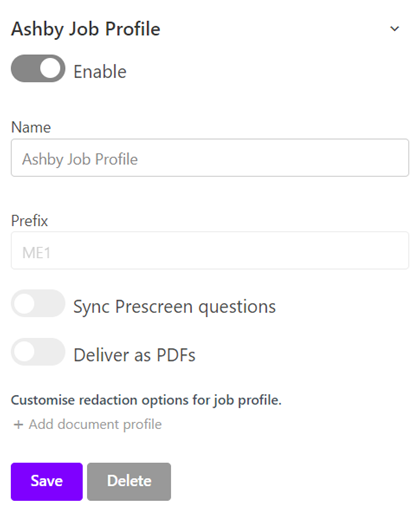
The prefix field will correlate to the job in Ashby containing that MeVitae Prefix custom field, for example:
This means that any candidate tied to a job that has a ME1 MeVitae Prefix custom field that correlates with a job profile in MeVitae will abide by the configured redaction rules.
The custom field name in Ashby must match the custom field name setup in the Advanced Settings page in MeVitae.
Creating the Document Profiles in MeVitae:
Once the job profile is created, you'll be able to expand it on your main dashboard to further configure the redaction level. Simply select "+Add document profile" and it'll walk through setting that up:
How to disable the integration:
Contact your MeVitae account manager.
To pause any redaction, you can remove the “ME1” MeVitae Prefix custom field from your Ashby jobs.
Common failures and solutions
If you are still experiencing issues after trying the above solutions, please contact us through the issue log form.
1. Is the file type supported?
If the candidate has uploaded a document that is not supported, ask the recruiter to attach a file that is or ask the candidate to do so. Then move the candidate back to the ‘Application Review’ stage
2. Is the file size greater than 1500kb?
If it is too big, the recruiter needs to copy and paste the text content to a new document and reupload to reduce the file size. This could also be a result of too many graphic designs, please ask the candidate to remove these. Then move the candidate back to the ‘Application Review’ stage.
3. Does the document open in Microsoft Word desktop app or in browser when the resume is downloaded?
If it does neither, contact the candidate to upload a new document and remove their old document from their candidate profile. Then move the candidate back to the ‘Application Review’ stage.
4. Does the name of the file have any of the following special characters: \/:*?”<>|
If it does, the recruiter needs to download the file and rename the document to remove these special characters. The old file should then be removed from the candidate profile. Then move the candidate back to the ‘Application Review’ stage
5. Does the file need converting?
Ask the recruiter to convert the file as shown above and remove the old file. Then move the candidate back to the ‘Application Review’ stage.
6. Does the document contain any images or is it a scan of a document?
- Ask the candidate to submit a new file addressing this issue
- Reupload the new file to Ashby
- Move the candidate back to the ‘Application Review’ stage